
To assign a license to a learner, follow the steps below:
1. Sign in to your Coach dashboard.
2. Click your profile avatar in the top-right corner.
3. Select Subscription & billing from the menu. See screenshot below.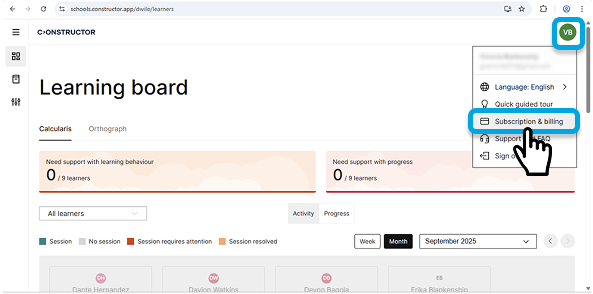
4. On the Subscription and billing page, locate the product. For example, Orthograph.
5. In the Assigned column, open the Select learner dropdown and scroll through the list and select the learner who should receive the license. See screenshot below.
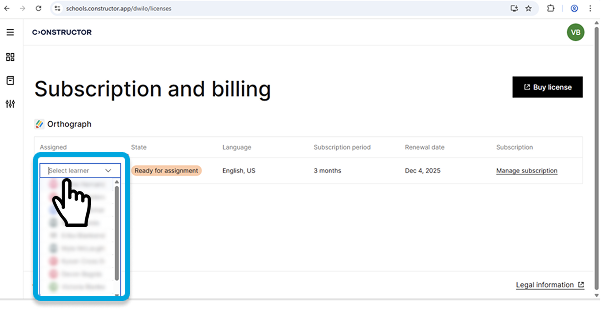
6. The State will change from Ready for assignment to Assigned/Active, and the learner’s name will appear in the Assigned column.
Once the status updates, the license has been successfully assigned.